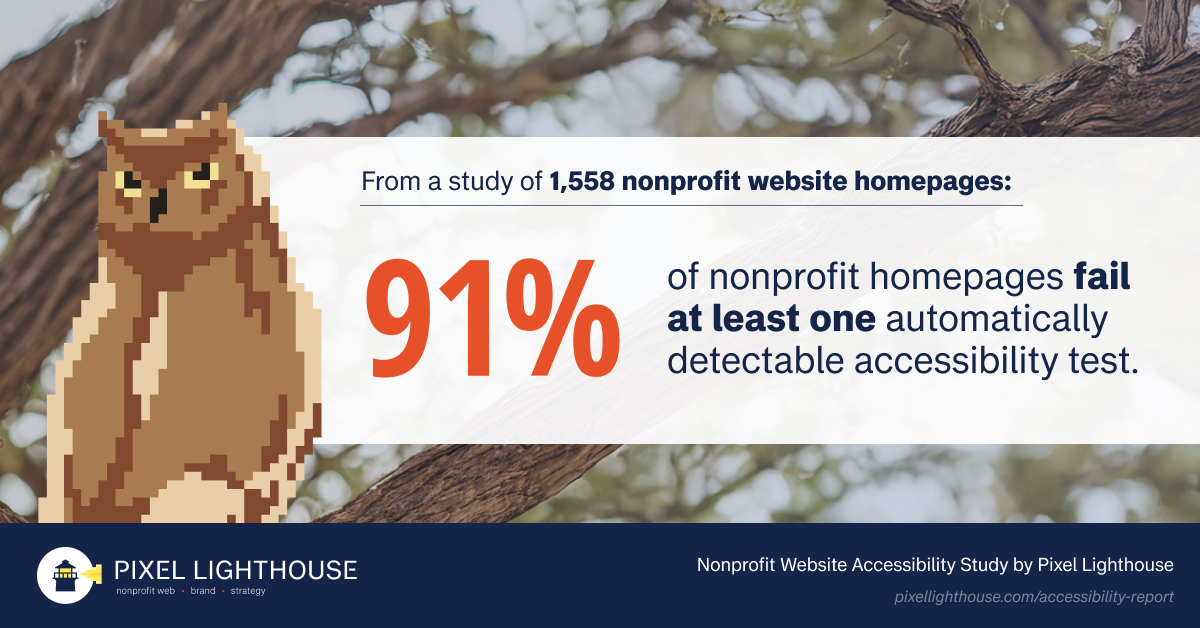
91% of nonprofit homepages fail at least one automatically detectable accessibility test.
We scanned 1,558 randomly sampled US nonprofit homepages in October 2026, and only about 1 in 11 came back clean against both WCAG 2.1 Level A and AA, which is the legally mandated accessibility requirement for websites.
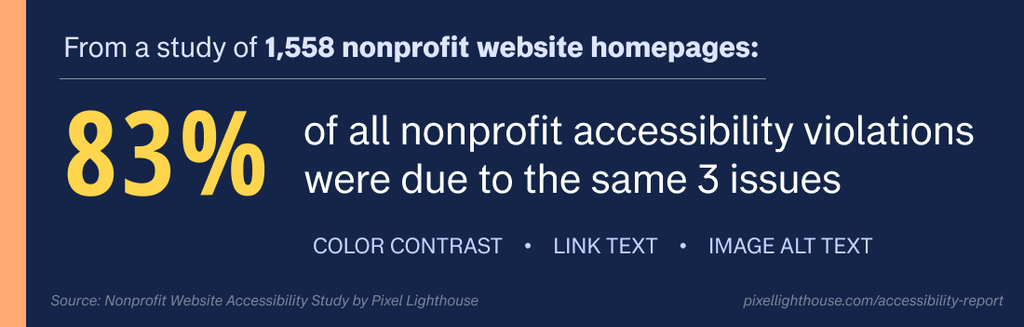
The failures themselves are not unusual or even difficult to address. In fact, three fixable problems account for 83% of every failing element we found. And the most surprising finding was that organizations with the biggest budgets do no better than the smallest ones.
Key findings: Nonprofit website accessibility statistics (2026)
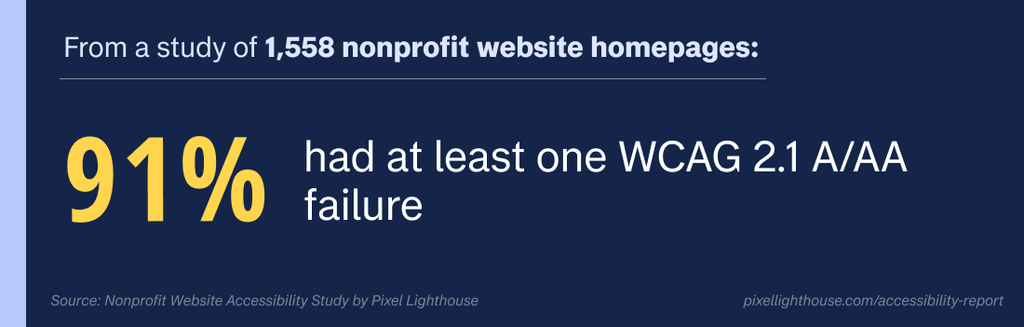
- 91% of nonprofit homepages have at least one accessibility failure (using WCAG 2.1 A/AA). Only 9% pass every automated WCAG check.
- 76% fail WCAG Level A, the minimum level, not just the AA standard that most policies reference.
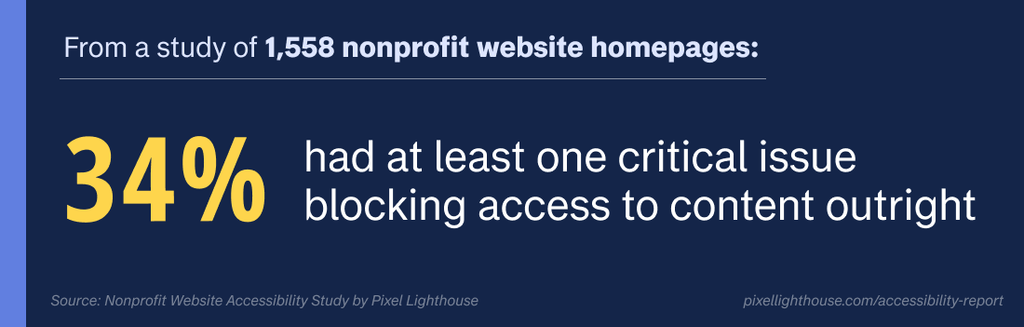
- 34% (about 1 in 3) have a critical accessibility issue, the kind that blocks some users from content outright.
- 3 issues cause 83% of all failures: low color contrast, links with no readable name, and images with no alt text. 86% of sites have at least one of these three.
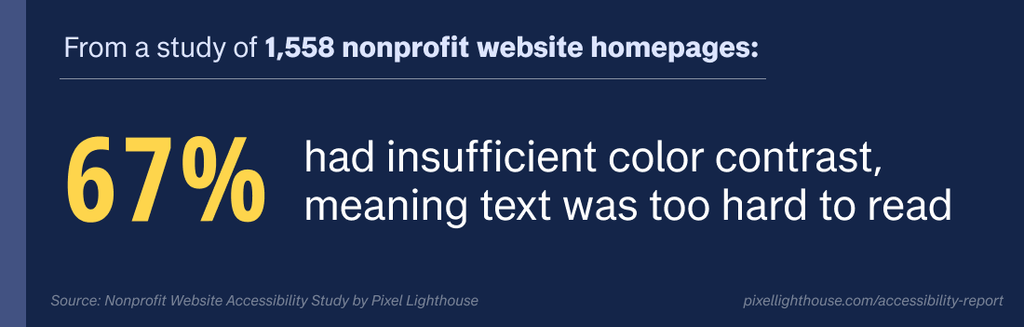
- 67% have text with insufficient color contrast, the single most common failure.
- 58% have links a screen reader cannot name, most often icon links.
- 1 in 4 (25%) have images with no alternative text. One homepage had 91 images without it.
- Budget doesn’t predict accessibility. Nonprofits with $20M+ in revenue fail at the same rate (90%) as those under $1M (91%).
- No cause area is an exception. Every cause area we could measure fell between 89% and 93%.
- About 1 in 15 (6.8%) nonprofit homepages block automated visitors outright, and one web host’s bot protection accounted for 6 in 10 of those blocks.
Want to see where your site falls in this data? [Compare your homepage →]
How we tested
We drew a stratified random sample of 1,700 US 501(c)(3) public charities with at least $100k in annual revenue from IRS records, then tested each organization’s homepage with axe-core, the open-source engine behind most automated accessibility tools.
- Full sample: 1,700 nonprofits across four revenue bands, weighted so overall figures reflect the real nonprofit population.
- Audited sample: 1,558 homepages loaded and were scanned. 114 blocked the scanner and 28 failed for technical reasons.
- Standard applied: WCAG 2.1 Level A and AA, the standard named in US federal accessibility rules.
- Scope examined: homepage only with one scan per site.
One limitation is useful to know up front: Automated testing catches only part of what makes a site inaccessible. For example, a scanner can tell that an image has no alt text, but not whether existing alt text is accurate. It also can’t judge details like keyboard navigation, focus order, or whether form errors make sense.
Every number below is the machine-detectable subset, meaning the real picture of nonprofit website accessibility is likely worse. Full details are in the methodology section at the end.
9 in 10 nonprofit homepages fail basic accessibility tests
Of 1,558 homepages, 91% had at least one WCAG 2.1 A/AA failure. Only 9% passed every automated WCAG check.
The typical homepage failed 2 different WCAG rules across 8 page elements. That sounds modest until you look at the extremes: 43% of homepages had 10 or more failing elements.
Most sites miss the accessibility floor, not the ceiling
WCAG has three conformance levels. Level A is the minimum. It covers problems that make content unusable, and not just “awkward.” Level AA is the level US federal rules and most accessibility policies require.
Read that way, the finding isn’t that nonprofit sites fall short of an aspirational standard. Instead, three in four are missing the baseline.
Severity points the same way: axe-core (our automated tool used for this analysis) rates each issue from minor to critical.
About 1 in 3 homepages (34%) had at least one critical issue: something that blocks access to content outright for some visitors, rather than just slowing them down.
Here’s how the breakdown falls for all of the nonprofit websites scanned:
Measure | Share of nonprofit homepages |
|---|---|
Fail at least one WCAG 2.1 A/AA rule | 91% |
Fail Level A (the minimum) | 76% |
Fail at least one AA-only rule | 70% |
Have a critical or serious issue | 90% |
Have a critical issue | 34% |
Pass every automated WCAG check | 9% |
Three problems cause 83% of all failures
The numbers above are less overwhelming than they look, however, because the failures are concentrated.
We recorded 20,657 failing page elements across all audited homepages. Three issue types accounted for 83% of them, and 86% of homepages failed at least one of the three.
Most common WCAG failures | WCAG level | Share of homepages |
|---|---|---|
Insufficient color contrast | AA | 67% |
Links with no discernible text | A | 58% |
Images missing alt text | A | 25% |
Embedded frames with no title | A | 11% |
Zoom and scaling disabled | AA | 11% |
Links distinguished only by color | A | 8% |
Visible label missing from accessible name | A | 5% |
1. Insufficient color contrast (67% of nonprofit homepages)
Accessibility rule: color-contrast · Severity: serious · 10,190 failing elements
Text needs enough contrast against its background for people with low vision, people with color vision deficiency, and anyone reading a phone outdoors. Yellow on white is the extreme case, but there’s a wide spectrum of combinations that range from “impossible to read” to merely “difficult to read without strain.”
Light gray body text is the usual culprit, along with white text over photos and brand colors that work large but fail on small font sizes.
Affected homepages had a median of 6 separate contrast failures, and one had 134. That pattern points to a design-system problem, rather than just isolated mistakes. Contrast alone accounts for about half of all failing elements in the study.
What fixing it involves: Audit the color palette once, adjust the values that fail the 4.5:1 minimum, and apply them through the site’s shared styles. And be very careful about text over images, no matter the text color. The change is usually small, but it needs a design decision, which is part of why the problem persists.
2. Links without accessible text (58% of nonprofit homepages)
Accessibility rule: link-name · Severity: serious · 5,267 failing elements
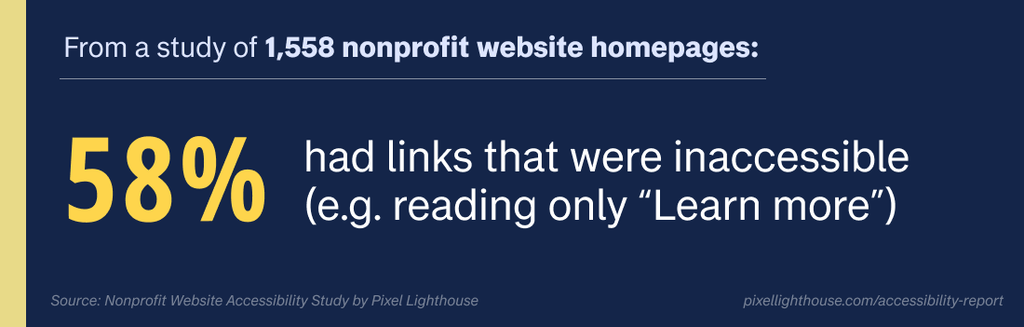
All links need text a screen reader can announce. Without it, the screen reader just says “link” with no hint of where it goes, or reads out a confusing fragment of the URL.
Icon links are the most common source for this issue: social icons in the footer, as well as search and menu buttons in the header.
When browsing websites, screen reader users often pull up a list of all links on a page. On the sites without link text, that list is a column of identical, meaningless entries. The median affected nonprofit homepage had 4 nameless links; the worst had 72.
What fixing it involves: Add descriptive text to the link, or an aria-label where the design calls for an icon alone. It’s quick, though it has to be done everywhere the pattern appears.
3. Images without alternative text (25% of nonprofit homepages)
Accessibility rule: image-alt · Severity: critical · 1,771 failing elements
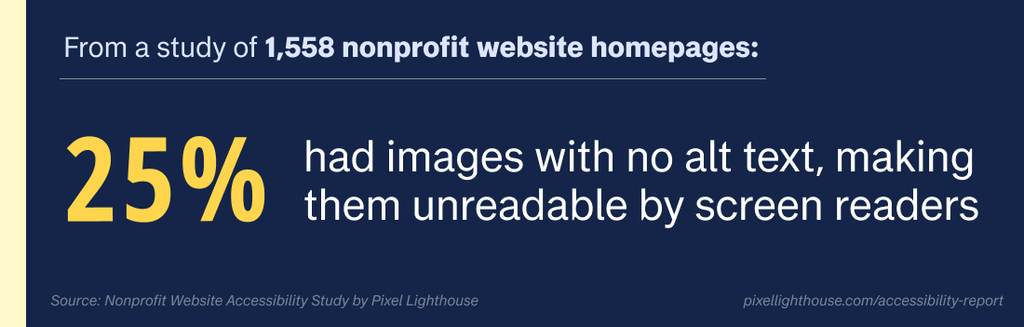
An image with no alt attribute is effectively invisible to anyone who can’t actually see it. If the image carries information, that information is missing for anyone using screen readers. If the image is decorative, it should be marked as such so screen readers know to skip it.
This affected fewer sites than the other two common problems, but it’s the only one of the three rated “critical.” The median affected homepage had 2 images without alt text. The worst had 91 images, which is what happens when a gallery gets filled without alt text ever being required at upload.
What fixing it involves: Write alt text for informational images and give decorative ones an empty alt attribute. Unlike the other two issues, this can’t be fixed in a template, because each image needs a human judgment. You can stop it from growing by making alt text a required field in your website content management system.
A $20M nonprofit’s website is no more accessible than a $200k organization
The intuitive explanation for all of these accessibility issues is money. Small nonprofits run on volunteers and donated design work, so of course their sites will have problems that better-funded organizations have solved. The data, however, doesn’t support that assumption.
Annual revenue | At least one WCAG failure | At least one critical issue | Median failing elements |
|---|---|---|---|
$100k to $1M | 504 | 91% | 34% |
$1M to $5M | 499 | 92% | 33% |
$5M to $20M | 344 | 92% | 35% |
$20M and above | 211 | 90% | 41% |
Per-band figures are unweighted. Differences between bands are within the margin of error.
Organizations with more than $20M in annual revenue failed at essentially the same rate as those under $1M. If anything, the largest nonprofits were slightly more likely to have a critical issue, though the gap is too small to be meaningful.
No cause area is an exception
We also split results by cause area, using IRS NTEE codes, for every group with at least 75 audited homepages.
Cause area | Homepages audited | At least one WCAG failure | At least one critical issue |
|---|---|---|---|
Human Services | 273 | 92% | 34% |
Education | 129 | 93% | 38% |
Arts, Culture & Humanities | 128 | 92% | 38% |
Health Care | 110 | 89% | 28% |
Recreation & Sports | 80 | 91% | 39% |
Every group landed within a few points of 91%. Health care organizations, many of which face a federal compliance deadline (more below), did no meaningfully better than arts groups or sports leagues.
What this suggests is that accessibility at this level isn’t a resource problem. Nothing described above is expensive to fix, and most of it doesn’t need a rebuild. These problems persist because nobody knew to check, and nobody checked because accessibility is rarely part of how a website gets planned, built, or signed off.
About 1 in 15 nonprofit websites block automated visitors
Before we could test anything, 114 of the 1,700 homepages in our sample refused to load for our scanner. Weighted to the nonprofit population, that’s 6.8%, or roughly 1 in 15.
Instead of the homepage, these sites served a bot-challenge screen: a “verify you’re human” page, some kind of browser check, or an outright access-denied message.
Annual revenue | Homepages blocked |
|---|---|
$100k to $1M | 6.7% |
$1M to $5M | 7.5% |
$5M to $20M | 6.4% |
$20M and above | 5.3% |
One web host stood out. 70 of the 114 blocks (61%) came from SiteGround’s bot protection, which redirects automated visitors to a challenge page.
Why it matters for a nonprofit:
- Search engines and AI tools are automated visitors too. Aggressive bot protection can interfere with how your site gets indexed, previewed in social posts, or summarized by AI assistants.
- Accessibility tools and auditors can’t see your site. The same block that stopped our scanner can stop the checker your web volunteer tries to run.
- Challenge screens are a barrier in their own right. Puzzles and verification steps are a well-documented obstacle for some disabled visitors.
If your site is on a host with built-in bot protection, it’s worth checking what it blocks. It’s usually a dashboard setting that’s simple to adjust.
Beyond compliance: structural problems no standard requires
Everything above counts only as basic accessibility (WCAG) failures.
Axe-core (the automated tool we used to conduct these scans) also checks a set of structural best practices that aren’t part of the standard. (They assist with website usability, but aren’t strictly required as are the other guidelines.)
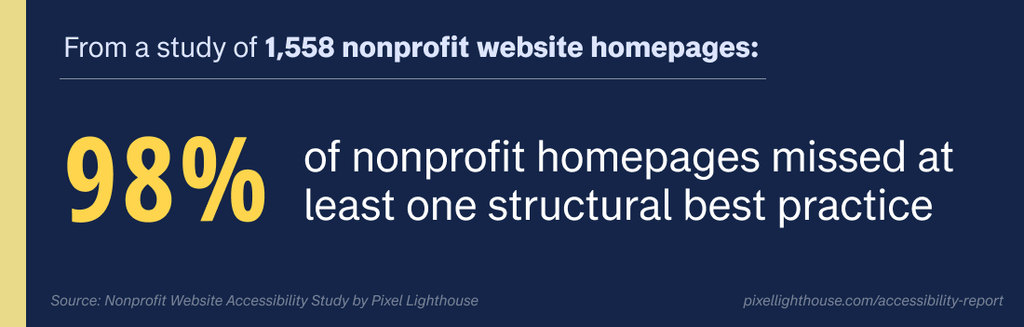
A site can fail all of these best practices and still pass an accessibility conformance audit, so we report them separately. Counting these too, only about 2% of nonprofit homepages came back with nothing flagged.
Structural best practice | Share of homepages |
|---|---|
Content outside any landmark region | 60% |
Heading levels that skip (h2 to h4, for example) | 51% |
No “main” landmark | 26% |
No h1 heading | 21% |
Landmarks are the various regions of a page:
- Header
- Navigation
- Main content
- Footer
Sighted visitors know where to look and interact with them. Screen reader users jump between them the way a sighted eye jumps around a layout. Content outside any landmark becomes an undifferentiated stream of information, with no way to easily skip around to the content they’re looking for.
On affected homepages, a median of 7 elements sat outside any landmark.
Headings work much the same way. Screen reader users skim long pages by heading. When heading tags are chosen as a means of displaying a certain text size instead of showing content structure (which happens frequently on websites), the page reads like a table of contents in the wrong order.
What fixing it involves: Wrap content in the right HTML elements (header, nav, main, footer) and use the correct heading levels. On most sites both are template changes, which makes this one of the cheapest improvements in the report.
Who pays the price for inaccessible nonprofit websites
Accessibility is usually framed as merely compliance, which is true on the face of it. For nonprofits, however, two specific costs make it more important to meet.
Your most generous donors read your site with older eyes. Contrast sensitivity starts declining in middle age, and low-contrast text slows older readers far more than younger ones. Low contrast was the most common failure in our data, on 67% of nonprofit homepages. Meanwhile, older donors give more per person than other generations.
Put those together, and the light gray text that looks refined on a designer’s monitor is hardest to read for the people most likely to fund your work. A donor who struggles to read your appeal rarely tells you. They just leave.

If you receive HHS funding, there’s a deadline. Under Section 504 of the Rehabilitation Act, recipients of federal financial assistance from the US Department of Health and Human Services must make web content conform to WCAG 2.1 Level AA. That includes community health centers, Head Start programs, and many social service providers.
In May 2026, HHS pushed the compliance dates back one year: May 11, 2027 for recipients with 15 or more employees, and May 10, 2028 for smaller ones (Federal Register). Confirm the current status (and whether it applies to you) before planning around it.
Both matter: 91% of the homepages we tested have at least one failure that rules out WCAG 2.1 AA, and a homepage is only one page of a whole website.
What to do about it
To check your own site, axe DevTools is a free browser extension built on the same engine we used. Running it on your homepage takes about a minute. WAVE from WebAIM shows similar results more visually.
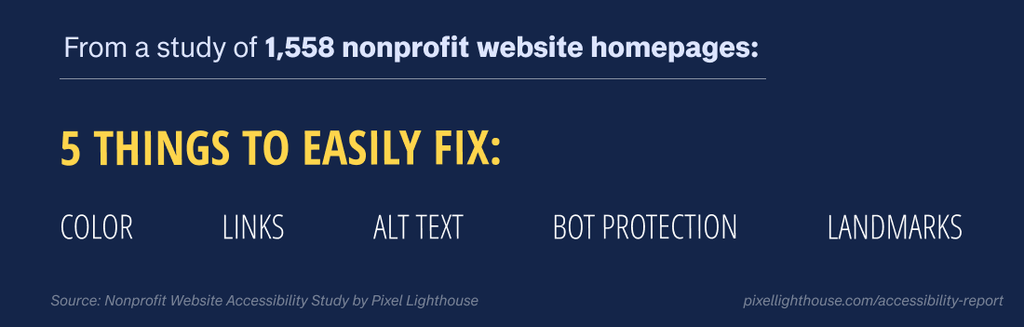
Here’s the order that buys the most improvement for the time spent:
- Fix your color palette. Check your brand and text colors against the 4.5:1 minimum with WebAIM’s contrast checker. Change the values in your site’s core styles (not page by page). This addresses the most common failure (67% of sites) everywhere at once.
- Name every icon link. Start with the social icons in your footer and the icon-only buttons in your header, since they appear on every page.
- Make alt text a required field in your content management system. This stops new failures while you work through existing images.
- Check your bot protection. If your host offers it, make sure it isn’t blocking search engines, link previews, and testing tools.
- Add landmarks and fix your headings. Wrap header, navigation, main content, and footer in the right HTML elements, and give every page one h1. This is not a WCAG requirement, but is one of the cheapest usability wins available.
The first three of the above items live in your content and settings, so hand the list to whoever maintains the site.
Some structural fixes will depend on your theme or platform. If your platform won’t allow these changes, then you may be limited in your capabilities until your next redesign. Just remember: for any future versions of your website, make sure accessibility is a conversation you have early, ideally before anything’s been created.
How does your nonprofit website compare?
Send us your nonprofit website and we’ll run the same scan we used for this study.
We’ll compare your results against all 1,558 nonprofits in our data and against organizations in your revenue band, on the issues that matter most: color contrast, link names, image alt text, and bot blocking. Each result links to the fixes described above.
It’s free, and you’ll have it within two business days. Because it’s the same automated test, it has the same limits: it shows what a machine can find, but not necessarily that your org’s site is accessible.